Navigating the technical landscape of live broadcasting requires robust hardware and precise configuration. This definitive guide explains exactly how a 4K IPTV Encoder works, compares essential video codecs like HEVC, and provides a step-by-step setup tutorial to ensure your streams are flawless and buffer-free.
Introduction
The demand for ultra-high-definition live streaming has transformed the digital broadcasting industry. Deploying a professional 4K IPTV Encoder is now the foundational requirement for delivering cinematic visual quality over IP networks. This hardware sits at the core of modern video distribution, acting as the critical bridge between raw camera feeds and global audiences.
However, encoding ultra-high-definition video requires a deep understanding of complex compression algorithms and streaming protocols. Broadcasters must continuously balance bitrates, frame rates, and latency to prevent network bottlenecks. Choosing the wrong encoder hardware can immediately result in dropped frames, audio drift, and unacceptable buffering.
This comprehensive technical guide provides everything you need to master 4K video encoding. We will evaluate the critical differences between video codecs, provide an actionable buying checklist, and walk you through configuring your encoder for flawless transmission.
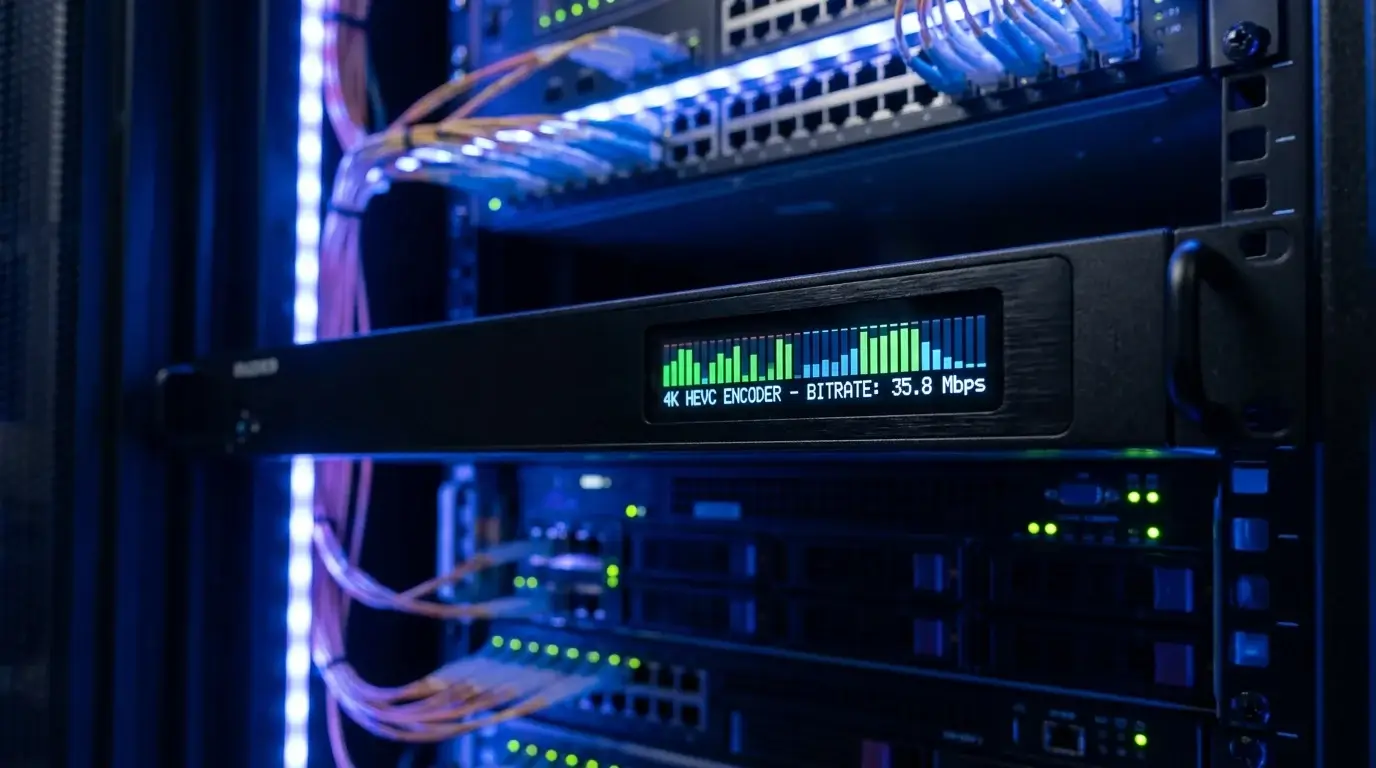
1. What Is a 4K IPTV Encoder?
Direct Answer:
A 4K IPTV Encoder is a dedicated hardware appliance that captures raw ultra-high-definition video and compresses it into a digital format suitable for real-time transmission over IP networks.
Uncompressed 4K video data from a camera is massively large and impossible to transmit over standard internet connections. The encoder solves this issue by utilizing mathematical algorithms, known as codecs, to shrink the file size in real time. It removes redundant visual data without significantly degrading the image quality.
Once the video is compressed, the device packages it into specific streaming protocols, such as SRT, RTMP, or MPEG-TS. The encoder then pushes this continuous digital stream to a streaming server, a Content Delivery Network (CDN), or a local area network (LAN). Viewers can subsequently access this feed using media players like TiviMate or IPTV Smarters.
2. How Does a 4K IPTV Encoder Work?
Direct Answer:
A 4K IPTV Encoder operates through a continuous, real-time pipeline: it captures baseband video, compresses the frames using a codec, packetizes the data, and transmits it over a network protocol.
First, the encoder captures the raw signal through a physical port, typically an HDMI input or an SDI input. Next, the internal Digital Signal Processor (DSP) applies a codec like H.265 to compress the video frames. This intensive computational step happens in milliseconds, requiring specialized internal hardware to maintain a steady 60 frames per second.
Third, the compressed video and audio tracks are multiplexed and chopped into small, manageable IP data packets. Finally, the encoder transmits these packets via a Gigabit Ethernet connection to your destination server. The receiving device or platform then reassembles and decodes these packets back into a viewable television picture.
3. Why Use a 4K Encoder for IPTV?
Direct Answer:
You must use a dedicated 4K IPTV Encoder to process the immense bandwidth of ultra-high-definition video reliably without overwhelming your local network or crashing your host computer.
Live streaming 4K video requires exponentially more processing power than standard 1080p video. A dedicated hardware encoder contains Application-Specific Integrated Circuits (ASICs) built exclusively for video compression. This ensures the device operates 24/7 without the thermal throttling or software crashes common to standard laptops.
Furthermore, professional encoders offer enterprise-grade features that software solutions lack. They support advanced broadcast protocols like SRT and UDP Multicast, which are critical for stable IPTV headend distribution. This dedicated processing allows you to deliver pristine, commercial-grade video to your viewers consistently.
4. 4K IPTV Encoder vs HD IPTV Encoder
Direct Answer:
The primary difference is processing capacity; a 4K encoder can handle over 8.2 million pixels per frame, whereas an HD encoder tops out at roughly 2 million pixels per frame.
Because of this massive data increase, 4K hardware requires significantly more advanced internal components. A standard HD encoder typically relies on the older H.264 codec, which handles 1080p efficiently. A modern 4K encoder must utilize the H.265 (HEVC) codec to compress the massive data payload without destroying your network bandwidth.
Consequently, 4K hardware is generally more expensive and requires superior thermal management. However, 4K models are fully backward compatible. They can easily encode 1080p or 720p streams, making them a future-proof investment for any broadcasting setup.
4K vs 1080p Encoding Comparison
| Feature | HD Encoder (1080p) | 4K Encoder (2160p) |
|---|---|---|
| Pixel Count Processed | ~2.07 Million per frame | ~8.29 Million per frame |
| Primary Codec Used | H.264 (AVC) | H.265 (HEVC) / AV1 |
| Network Bandwidth Needed | 5 - 10 Mbps | 15 - 35 Mbps |
| Processing Power | Moderate | Extremely High |
| Future Proofing | Low | High |
5. 4K Resolution Explained
Direct Answer:
4K resolution, specifically referred to as Ultra High Definition (UHD) in broadcasting, delivers a precise pixel dimension of 3840 x 2160.
This resolution provides exactly four times the visual detail and clarity of standard 1080p Full HD. When paired with High Dynamic Range (HDR), 4K video displays incredibly vibrant colors, deep blacks, and brilliant highlights. This is the visual standard expected for premium live sports and modern cinematic broadcasts.
To transmit this resolution successfully, every link in your broadcast chain must support 4K. Your camera, the HDMI cables, the 4K IPTV Encoder, and the viewer's destination display must all be UHD compatible. If any single component is limited to 1080p, the entire stream will automatically downscale.
6. H.264 vs H.265/HEVC for 4K IPTV
Direct Answer:
H.265 (HEVC) is a highly advanced video compression standard that requires 50% less bandwidth to deliver the exact same visual quality as the older H.264 codec.
Understanding these codecs is the most crucial aspect of operating a 4K IPTV Encoder. The legacy H.264 codec utilizes a fixed 16x16 macroblock architecture, which is incredibly inefficient for ultra-high-definition video. Attempting to stream 4K video using H.264 demands massive internet upload speeds, often causing severe network bottlenecks and viewer buffering.
Conversely, H.265 utilizes dynamic Coding Tree Units (CTUs) that process blocks up to 64x64 pixels. This allows an H.265 4K encoder to deliver broadcast-grade Ultra HD using only 15 to 25 Mbps of bandwidth. Upgrading to HEVC drastically reduces your Content Delivery Network (CDN) costs and ensures smoother playback.
H.264 vs H.265/HEVC Comparison
| Feature | H.264 (AVC) | H.265 (HEVC) |
|---|---|---|
| Architecture | Fixed Macroblocks (16x16) | Coding Tree Units (64x64) |
| Bandwidth Efficiency | Standard | 50% More Efficient |
| 4K Bitrate Requirement | 35 - 50+ Mbps | 15 - 25 Mbps |
| Processing Power Needed | Moderate | Very High |
| Device Compatibility | 100% Universal | Broad (Modern devices) |
7. 4K HDMI Encoder vs SDI Encoder
Direct Answer:
An HDMI encoder is ideal for short cable runs and prosumer cameras, whereas an SDI encoder is strictly required for professional, long-distance broadcast environments.
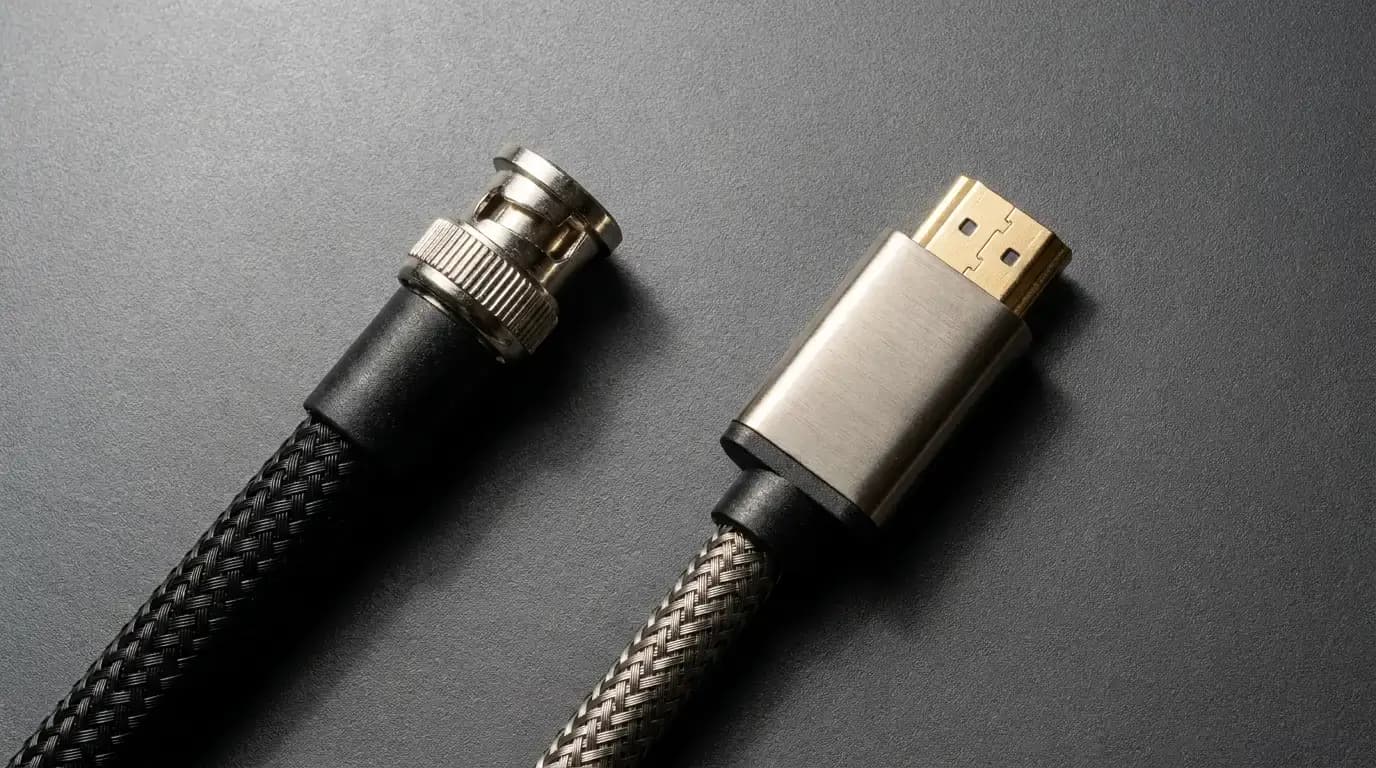
HDMI (High-Definition Multimedia Interface) cables are standard for laptops, gaming consoles, and budget cameras. However, HDMI signals degrade rapidly after 50 feet without signal repeaters. Furthermore, standard HDMI connectors lack locking mechanisms, meaning a tripped cable will instantly kill your live broadcast.
SDI (Serial Digital Interface) utilizes robust coaxial cables with locking BNC connectors, making accidental disconnections almost impossible. An SDI encoder can receive uncompressed video signals from over 300 feet away without any signal loss. This makes SDI the mandatory standard for large stadiums, concert venues, and professional IPTV Providers.
HDMI vs SDI Comparison
| Feature | HDMI Input | SDI Input |
|---|---|---|
| Connector Type | Standard multi-pin | Coaxial BNC |
| Locking Mechanism | No (Friction fit) | Yes (Twist-lock) |
| Maximum Cable Length | ~50 Feet | 300+ Feet |
| Cost | Budget-Friendly | Premium / Professional |
| Best Use Case | Desktop streaming, small studios | Stadiums, remote live TV |

8. Hardware Encoder vs Software Encoder
Direct Answer:
A hardware 4K IPTV Encoder is a standalone physical appliance built exclusively for video processing, while a software encoder is a program (like OBS Studio) installed on a computer.
Hardware encoders utilize dedicated microchips that perform only one task: encoding video. This makes them incredibly stable, power-efficient, and immune to standard computer operating system crashes. They are the industry standard for 24/7 continuous broadcasting and hospitality IPTV networks.
Software encoders offer limitless creative flexibility, allowing for custom graphic overlays and complex scene switching. However, they rely entirely on a computer's CPU and GPU to process the heavy 4K video load. This makes them prone to overheating, thermal throttling, and sudden software crashes during critical live events.
Hardware vs Software Encoding Comparison
| Feature | Hardware Encoder Box | Software Encoder (e.g., OBS) |
|---|---|---|
| Reliability | Extremely High (24/7 Uptime) | Moderate (Prone to OS crashes) |
| Power Consumption | Very Low | High |
| Form Factor | Compact, standalone appliance | Requires full PC/Laptop |
| Customization | Limited to built-in web UI | Infinite (Custom overlays) |
| Best Use Case | Broadcasters, Hotels, Churches | Gamers, Podcasters, YouTubers |
9. Streaming Protocols Supported by 4K Encoders
Direct Answer:
Modern 4K streaming encoders support a wide array of network protocols to transport video packets, including RTMP, SRT, HLS, UDP, and MPEG-TS.
Choosing the correct protocol dictates your stream's latency, security, and overall reliability across different networks. Traditional TCP-based protocols are highly compatible but often struggle with packet loss over public internet connections.
Modern broadcasting relies on protocols designed specifically to recover lost data packets in real time. Your encoder will act as the source, pushing this protocol stream directly to a CDN, an IPTV Service middleware server, or a local multicast switch.
10. RTMP vs SRT vs HLS vs UDP
Direct Answer:
RTMP is best for social media, SRT provides secure low-latency transmission over public internet, HLS is standard for viewer playback, and UDP is used for local closed networks.
The RTMP (Real-Time Messaging Protocol) has been the ingestion standard for a decade and is universally accepted by platforms like YouTube. However, it handles unstable internet connections poorly.
SRT (Secure Reliable Transport) is the modern replacement for RTMP. It intelligently recovers lost data packets and uses AES encryption, making it incredibly resilient and low-latency over unpredictable public internet connections. UDP Multicast is utilized exclusively in closed Local Area Networks (LANs), allowing a single encoder to serve hundreds of hotel rooms without increasing bandwidth.
RTMP vs SRT vs HLS vs UDP Comparison
| Protocol | Latency | Packet Loss Recovery | Best Use Case |
|---|---|---|---|
| RTMP | Low (2-5 sec) | Poor | Direct streaming to social platforms |
| SRT | Ultra-Low (<1 sec) | Excellent | Professional remote contribution |
| HLS | High (10-30 sec) | Good | Final delivery to end-user media players |
| UDP | Near Zero | None | Closed local networks (LAN IPTV) |
11. Recommended Bitrate for 4K IPTV
Direct Answer:
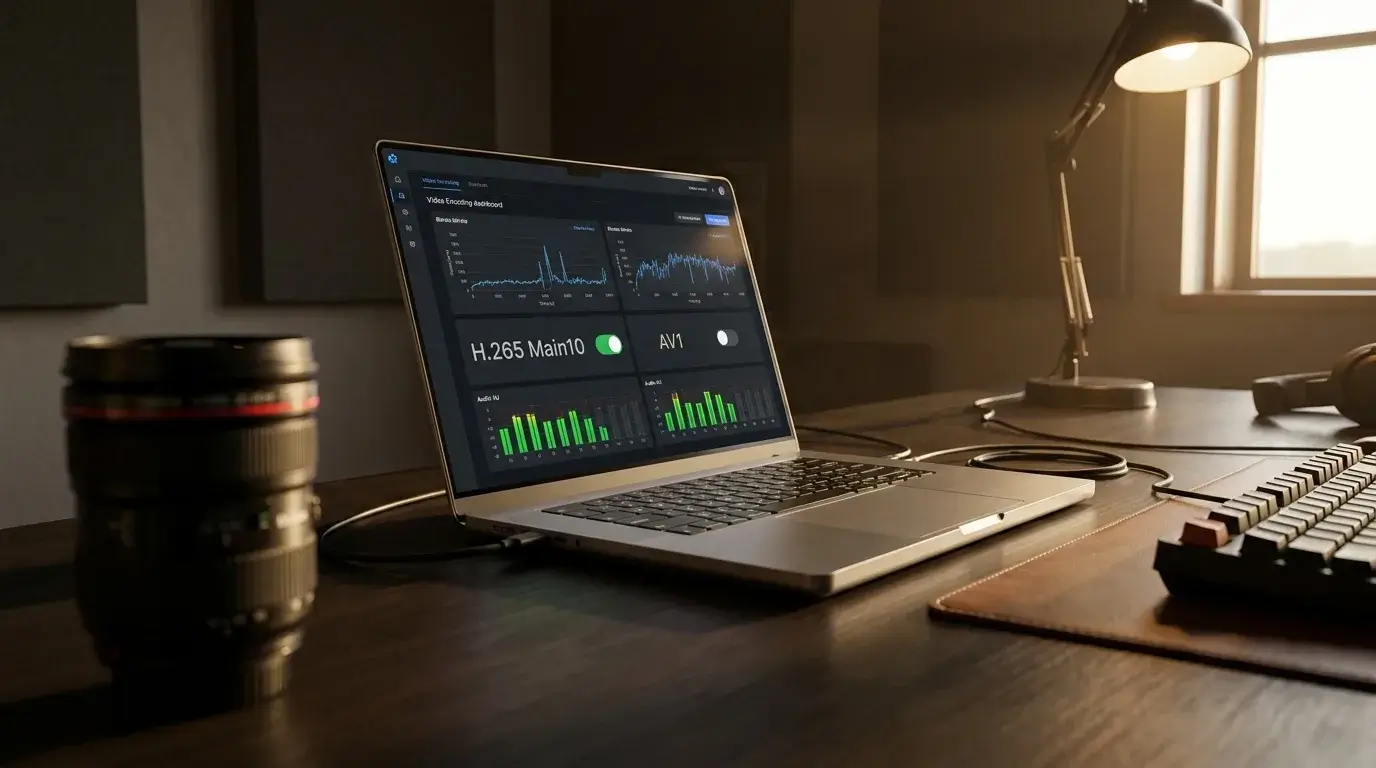
For a high-quality 4K 60fps stream using the HEVC codec, industry experts recommend setting your encoder's bitrate between 15 Mbps and 25 Mbps.
Configuring the correct bitrate on your H.265 4K encoder is the most critical factor in preventing pixelation during high-motion scenes. Your required bitrate depends entirely on your chosen codec, your frame rate, and the complexity of the video content. A static presentation requires far less data than a fast-moving football match.
It is absolutely crucial to note that your local internet upload speed must be at least 40% higher than your target streaming bitrate. If you set your encoder to 25 Mbps, your network must maintain a steady, dedicated upload speed of 35 Mbps to prevent buffering.
Realistic Bitrate Recommendations
| Resolution | Frame Rate | Recommended Codec | Target Bitrate Range |
|---|---|---|---|
| 1080p (Full HD) | 30fps | H.264 | 4.5 - 6 Mbps |
| 1080p (Full HD) | 60fps | H.264 / H.265 | 6 - 9 Mbps |
| 4K (Ultra HD) | 30fps | H.265 (HEVC) | 10 - 15 Mbps |
| 4K (Ultra HD) | 60fps | H.265 (HEVC) | 15 - 35 Mbps |
12. Frame Rate and Resolution Settings
Direct Answer:
For cinematic content, set your encoder to 4K at 24fps or 30fps; for live sports and gaming, you must select 4K at 60fps to ensure fluid motion.
The frame rate dictates how many individual images the encoder processes every second. Attempting to broadcast a live sporting event at 30fps will result in aggressive motion blur and a choppy viewing experience. Ensure your camera, your capture card, and your 4K IPTV Encoder are all synced to the exact same frame rate.
When configuring these settings in your encoder's web dashboard, always select Constant Bitrate (CBR) rather than Variable Bitrate (VBR). CBR ensures the data flow remains steady and predictable, which prevents sudden bitrate spikes from crashing your streaming server.
13. Low-Latency 4K IPTV Streaming
Direct Answer:
To achieve ultra-low latency in 4K streaming, you must utilize hardware encoding, implement the SRT or UDP protocol, and optimize your Keyframe Interval settings.
High latency completely ruins interactive broadcasts, live auctions, or sports betting streams. Standard streaming setups natively introduce 15 to 30 seconds of delay to buffer data and ensure smooth playback. To eliminate this delay, your 4K live streaming encoder must prioritize transmission speed over packet recovery.
Switching from TCP-based protocols to UDP or SRT drastically cuts delivery time. Additionally, lowering the "GOP Size" (Group of Pictures) or Keyframe Interval to match your frame rate forces the device to send full image frames more frequently. This accelerates video decoding at the viewer's endpoint.
14. How to Set Up a 4K IPTV Encoder
Direct Answer:
Setting up your encoder involves connecting the physical hardware, accessing the device's local web interface, and configuring your network and compression settings.
Proper installation prevents network handshake failures and ensures a stable stream. Follow this beginner-friendly, step-by-step setup guide to properly configure your hardware for live broadcasting.
Step-by-Step Setup Guide
- 1Connect the video source: Plug your camera into the HDMI or SDI input port.
- 2Connect to the network: Connect the encoder directly to your network router using a Cat6 Ethernet cable. Power on the device.
- 3Access the encoder interface: Type the encoder's default IP address into a web browser on a computer connected to the same network.
- 4Select 4K resolution: Navigate to the video encoding tab and set the input resolution to 3840x2160.
- 5Select H.265/HEVC: Choose the H.265 codec to ensure maximum bandwidth efficiency.
- 6Configure bitrate: Set the rate control to CBR and enter your target bitrate (e.g., 15000 Kbps).
- 7Select streaming protocol: Choose your desired protocol (e.g., SRT or RTMP).
- 8Configure destination: Paste the Server URL and Stream Key provided by your CDN or platform.
- 9Start encoding: Click apply, save the settings, and start the stream.
- 10Test the IPTV stream: Open a media player like VLC or IPTV Smarters on a separate device to verify playback quality.
15. How to Connect an HDMI Source
Direct Answer:
Connect your camera's HDMI output directly to the encoder's HDMI input, ensuring the cable is rated for HDMI 2.0 or higher to support 4K 60fps bandwidth.
When dealing with a 4K HDMI encoder, cable quality is paramount. Older HDMI 1.4 cables do not possess the bandwidth required to carry a 4K signal at 60 frames per second. If you use an outdated cable, the encoder will forcefully downscale the video to 30fps or drop the resolution to 1080p.
Always secure the HDMI cable with a strain relief tie to prevent it from sagging and damaging the encoder's delicate port. If you need to monitor the raw video feed locally, utilize the encoder's "HDMI Loop-Out" port to pass the uncompressed signal directly to a production monitor.
16. How to Configure Network Streaming
Direct Answer:
Network configuration requires establishing a static IP address for your encoder and ensuring your router's firewall allows traffic to pass through the selected streaming port.
By default, most encoders use DHCP to grab an IP address from your router. However, for professional deployments, you should assign a Static IP Address. This ensures the encoder's control panel always remains at the exact same web address, even if the router reboots.
If you are using the SRT protocol to push video across the public internet, you must verify port forwarding. Ensure your network firewall is configured to allow UDP traffic through the specific port designated in the encoder's SRT settings (e.g., Port 8900).
17. How to Choose the Best 4K IPTV Encoder
Direct Answer:
Choosing the best encoder requires evaluating your specific camera outputs, network constraints, target audience protocols, and 24/7 reliability requirements.
A high-quality professional IPTV encoder represents a significant investment. You must look beyond basic marketing claims and verify the hardware's internal capabilities. Use the following detailed buying guide to evaluate potential models for your broadcasting infrastructure.
4K IPTV Encoder Buying Guide
- •Resolution Support: Verify the hardware officially supports 3840 x 2160 at 60fps. Many budget models falsely advertise "4K," but actually top out at 30fps.
- •Encoding Formats: The unit must support the H.265/HEVC codec for efficient 4K delivery. AV1 support is a massive bonus for future-proofing.
- •Physical Inputs: Ensure the device matches your camera gear. Choose HDMI 2.0 for prosumer setups, or 12G-SDI for professional, long-distance environments.
- •Network Interfaces: The device must have a Gigabit Ethernet port. Avoid relying exclusively on Wi-Fi for 4K streaming.
- •Streaming Protocols: Look for simultaneous multi-protocol support, specifically SRT, RTMP, and UDP Multicast.
- •Audio Standards: Verify it supports AAC audio encoding with adjustable sampling rates up to 48kHz to prevent audio drift.
- •Number of Channels: Determine if you need a single-channel portable box or a multi-channel rackmount chassis for an IPTV headend.
- •Hardware Acceleration: True hardware encoders rely on dedicated ASIC chips. Avoid cheap "encoder boxes" that are just Android TV devices running software encoders.
- •Ease of Configuration: A clean, intuitive Web GUI is essential for making rapid adjustments during a live broadcast.
- •Reliability & Cooling: Ensure the chassis has active thermal cooling or robust heat sinks to prevent thermal throttling during 24/7 operation.
Looking for IPTV solutions or professional streaming guidance?
Visit IPTV One 4K or contact us on WhatsApp at +44 7853 146902 for expert assistance.
18. Common 4K IPTV Encoder Problems
Direct Answer:
The most common problems include thermal overheating, severe stream stuttering due to bandwidth limitations, and audio desynchronization.
Encoder Overheating: Processing 4K video generates massive amounts of heat. Small, fanless hardware encoders can overheat if placed in unventilated server racks or direct sunlight. When the internal chip overheats, it will throttle its performance, immediately introducing severe macroblocking and eventual stream failure.
Dropped Frames and Stuttering: If your stream is skipping or freezing, your upload bandwidth is fluctuating. You must immediately lower your encoder's video bitrate in the web dashboard by 15% to 20% to stabilize the feed.
Audio Out of Sync: Audio drift usually occurs when the camera's audio sample rate does not match the encoder's output settings. If your camera outputs audio at 48kHz, ensure the encoder's web interface is strictly locked to 48kHz.
19. Troubleshooting Guide
Direct Answer:
Advanced troubleshooting requires isolating variables: test your cables, monitor your network packets, and check device log files to locate the source of the failure.
When your live broadcast fails, you must follow a systematic approach to restore the stream. Use this advanced troubleshooting checklist to diagnose persistent issues.
- •No Video Input Detected: If the encoder web interface shows a blank screen, ensure your camera's output resolution perfectly matches the exact resolution the encoder is expecting. Some encoders cannot downscale mixed resolutions automatically.
- •Network Handshake Failure: If the encoder fails to push data to the CDN, double-check your stream key and server URL. Ensure your router's firewall is not blocking the specific output port.
- •Multicast Network Flooding: If using UDP Multicast on a local hotel network causes the entire network to crash, ensure your network switches have "IGMP Snooping" enabled. This prevents video data from flooding ports that did not request the stream.
20. Frequently Asked Questions 4K IPTV Encoder
1. What is a 4K IPTV Encoder?
It is a dedicated hardware appliance that captures raw ultra-high-definition video and compresses it into a digital format for live streaming over IP networks.
2. What is the difference between an encoder and a decoder?
An encoder compresses raw video and sends it over a network. A decoder receives that network stream, decompresses it, and displays it on a screen.
3. Why do I need H.265 for 4K streaming?
H.265 (HEVC) is vastly superior in compression efficiency, requiring 50% less internet bandwidth than H.264 to deliver the same 4K visual quality.
4. Can I use OBS Studio instead of a hardware encoder?
Yes, but software like OBS relies on a PC, making it prone to operating system crashes. Hardware encoders are dedicated appliances built for 24/7 reliability.
5. What upload speed do I need for a 4K stream?
For a smooth, high-quality 4K stream using HEVC, you should configure your encoder to 15-25 Mbps. Therefore, your network needs a stable upload speed of at least 30-40 Mbps.
6. Why is my stream constantly buffering?
Buffering occurs when your encoder pushes data faster than your internet upload speed can handle. Lower your video bitrate in the encoder's settings to resolve this.
7. What is the SRT protocol?
Secure Reliable Transport (SRT) is an open-source video transport protocol that optimizes streaming across unpredictable networks by recovering lost data packets in real time.
8. Should I buy an HDMI or SDI encoder?
If you are running long cables (over 50 feet) in a professional broadcast environment, you must use SDI. For shorter runs and consumer cameras, HDMI is perfectly acceptable.
9. What does CBR mean?
Constant Bitrate (CBR) forces the encoder to output data at a steady, unchanging rate. This is the safest and most reliable setting for live streaming.
10. Do I need a 4K encoder if I only stream 1080p?
Purchasing a 4K encoder for 1080p streaming is a smart, future-proof investment, as 4K hardware features vastly superior processing power and handles lower resolutions flawlessly.
11. What is multicast streaming?
Multicast streaming sends a single video feed over a local network, and smart network switches replicate the stream for multiple viewers. It is highly efficient for closed hotel networks.
12. Can a VPN affect my IPTV encoder?
Yes. While a VPN secures your connection, the encryption overhead will introduce latency and reduce your maximum available upload bandwidth.
13. What is an M3U playlist?
An M3U is a text file format used to point media players to the specific IP addresses and streaming URLs generated by your IPTV server or encoder.
14. Does the encoder record video?
Many modern hardware encoders feature a USB port or SD card slot, allowing you to record the compressed MP4 file locally while simultaneously streaming it to the internet.
15. How do I fix audio out of sync?
Ensure the audio sampling rate on your capture device (e.g., 48kHz) perfectly matches the audio sampling rate selected in your encoder's web interface.
16. What is a multi-channel encoder?
It is a rack-mountable hardware chassis that can capture and encode multiple video inputs (e.g., 4, 8, or 16 HDMI ports) simultaneously.
17. How do I access the encoder's settings?
You type the encoder's specific local IP address into a web browser on a computer connected to the same network to access the graphical user interface.
18. What is IGMP Snooping?
It is a network switch feature required when using Multicast IPTV. It ensures video data is only sent to network ports that explicitly ask for it, preventing total network failure.
19. Why does my encoder get so hot?
Compressing 4K video requires massive processing power. Ensure your encoder is placed in a well-ventilated area, away from direct sunlight, to prevent thermal throttling.
20. Where can I buy professional IPTV equipment?
You should purchase enterprise-grade encoding equipment through certified system integrators. View our Pricing and service options for professional deployments.
Conclusion
Mastering the mechanics of a 4K IPTV Encoder is the definitive requirement for anyone looking to build a professional, ultra-high-definition streaming network. These powerful hardware appliances dictate the ultimate visual quality, latency, and reliability of your live broadcast.
By understanding the vital differences between hardware reliability and software flexibility, and by embracing modern compression standards like H.265 (HEVC), you can ensure your content reaches audiences flawlessly. Always prioritize network stability, hardwire your Ethernet connections, and configure your bitrates strictly according to your available upload bandwidth using Constant Bitrate (CBR).
Note: IPTV technology is a standard method of delivering video over IP networks. The legality of streaming specific content depends entirely on the provider's licensing, distribution rights, and the applicable copyright laws in your local jurisdiction.
Whether you are distributing a private broadcast in a hotel, streaming a massive live sports event, or managing a corporate video matrix, deploying the correct encoding technology is the foundation of your success.
Looking for IPTV solutions or professional streaming guidance?
Visit IPTV One 4K or contact us on WhatsApp at +44 7853 146902 for expert assistance.